
Decision Steps
Decision steps are a powerful marketing tool that allows you to split customers into distinct Journey paths based on specific conditions. This enables highly targeted, personalized communication strategies.
Decision steps follow a simple true/false logic flow:
-
Customers who meet specific conditions follow one path
-
Customers who don't meet those conditions follow an alternative path
Add a Decision Step
From your Journey canvas:
-
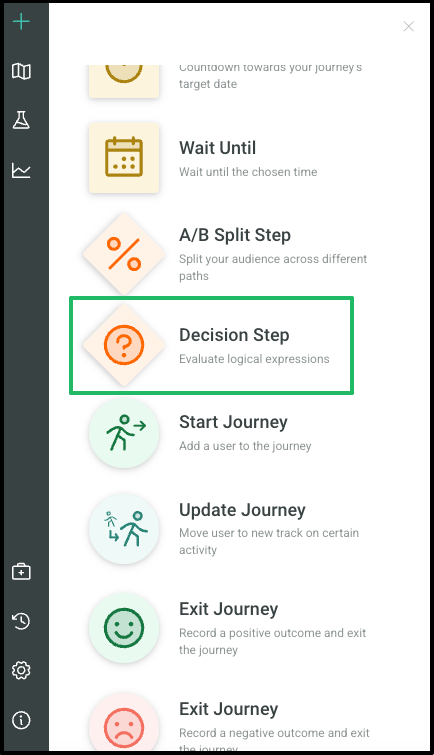
Click + in the top left corner; this will display the steps available to add to your canvas.
-
Select Decision Step.
-
Drag and drop to your desired spot in the Journey canvas.
Connections
The simple connector mechanism allows you to create complex workflows with clearly defined relationships between each step. When connecting elements, every step can have both inbound and outbound connections.
To create connections:
-
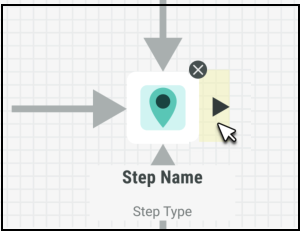
Hover over a step's edge to display an arrowhead.
-
Click and drag to the next step, and release to create a connector.
-
To label a connector, click it and add a name in the Edit Pane.
-
Use the Label Position slider to adjust label placement as needed.
Configuring the Decision Step
To configure this step, click on the icon in the canvas. This will open a panel on the left hand side of your screen with the associated settings where you can begin filling out each field accordingly.
Once complete, either click Save in the top right hand corner of your screen to save your changes and exit the Journey, or click Apply to save and continue updating the Journey.
Name
The system will automatically provide a default name to the Step, however we recommend updating this so that each Step’s name is clear and descriptive, and therefore easier to identify.
To change the name of your step, you can either:
-
Click on the default name directly on the canvas and type your preferred name
-
Enter a new name under Name from within the editing panel
Conditions
The Conditions option allows you to set up certain conditions or criteria that users must meet in order to enter the Step. For instance, you may wish only those from a certain location be allowed to enter (a Customer Attribute Condition), or that they clicked on a specific link (an Event Attribute Condition), or you could enter a literal condition as well.
The condition expression allows for real-time personalization by enabling you to create complex conditions to segment your users.
To define the conditions for a Step:
-
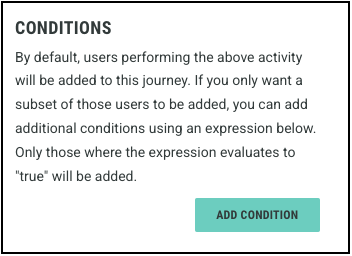
Click Add Condition to open the expression builder.
-
Name your condition for future reference.
-
Start typing or use the drop-downs to build your own expression.
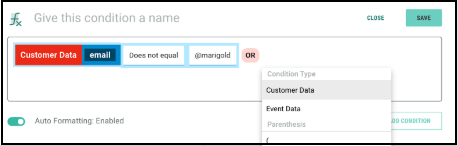
You can choose from two types of data to build your expression: Customer Data and Event Data.
-
Customer Data: Selecting Customer Data allows to personalize a customer’s experience by creating conditions based on Customer Data, such as how much they spent or their preferences. You will then be presented with the Member attributes list from the Data Source table defined in Journey setting. Select the required attribute.
-
Event Data: Selecting Event Data allows to build conditions based on customer behaviors, such as interactions with your campaigns or specific actions they take. You will then be presented with the Event attributes list. Select the required attribute.
You can now complete your condition by selecting:
-
Comparison Expressions: Select from the list of supported comparison expressions provided to help you evaluate the specified condition.
-
Value: Specify the string value to compare in your condition, or select Null if you want the expression to be evaluated against a null value.
You can enhance your condition by using the AND (exclusive) or OR (inclusive) operators to construct more complex logical expressions.
For more details and examples, refer here.
-
-
Click Save to save your Condition.
Note: The data available for selection here is from the Data Source table selected in the Journey settings. Verify that you've selected the appropriate table from Cheetah Digital in the Data Source section in the Journey Settings. Refer to Journey Settings for more help.
If you are using Zeta Interactive Interactive Moments from multiple sources, such as your website, POS, or other systems, by default, Journeys will listen to all of these. However, this can be restricted by specifying the audience IDs you want to use. However, you can also use the Condition to segment your users.
More details about this can be found in Journey Settings.
Adding Notes
Use the notes section to clarify the rationale behind your choices or to highlight any notes for other marketers using the Journey.
